How To Create Dashboard as a Private User?
Creation Date: Sep 30, 2025
Created By: Derilinx Team
1. Click on LOGIN
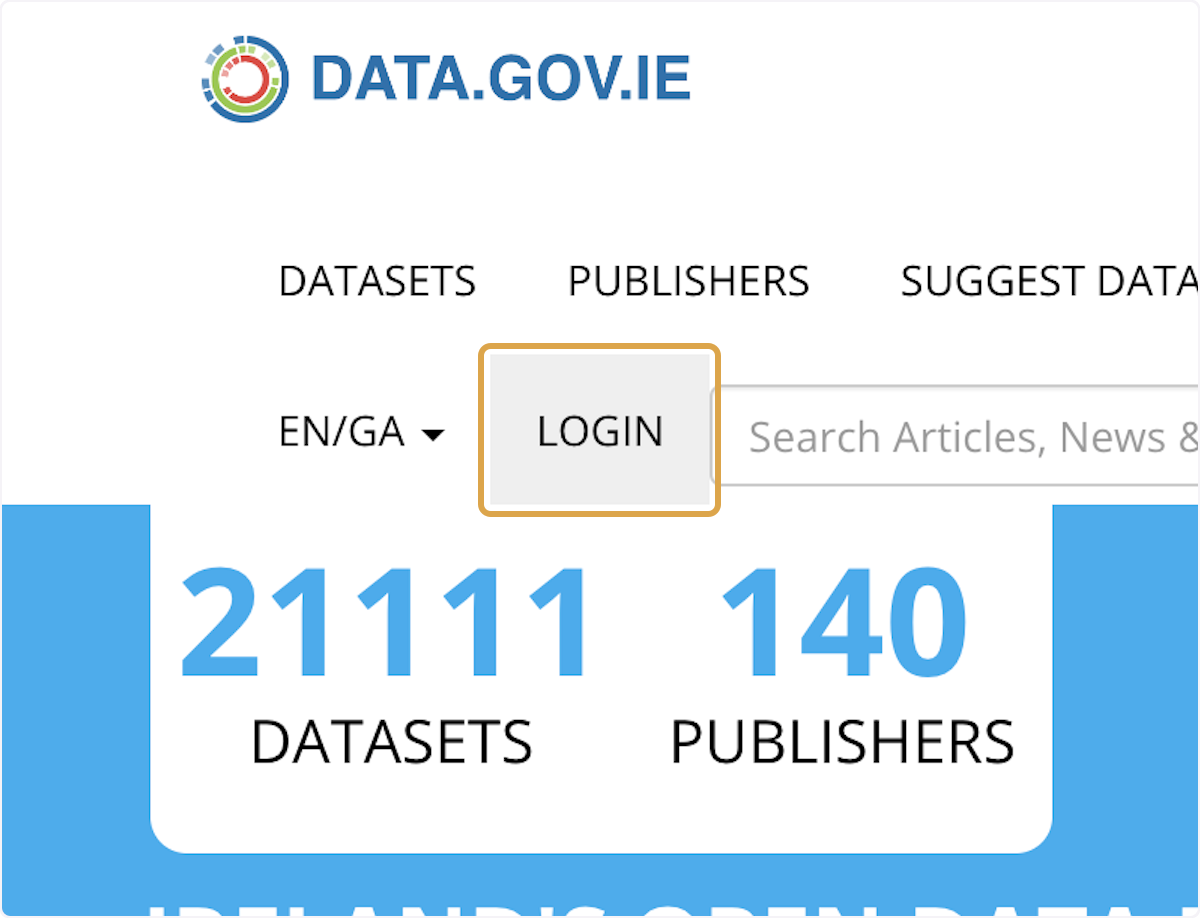
2. Enter your credentials and login

3. Click on DATASETS
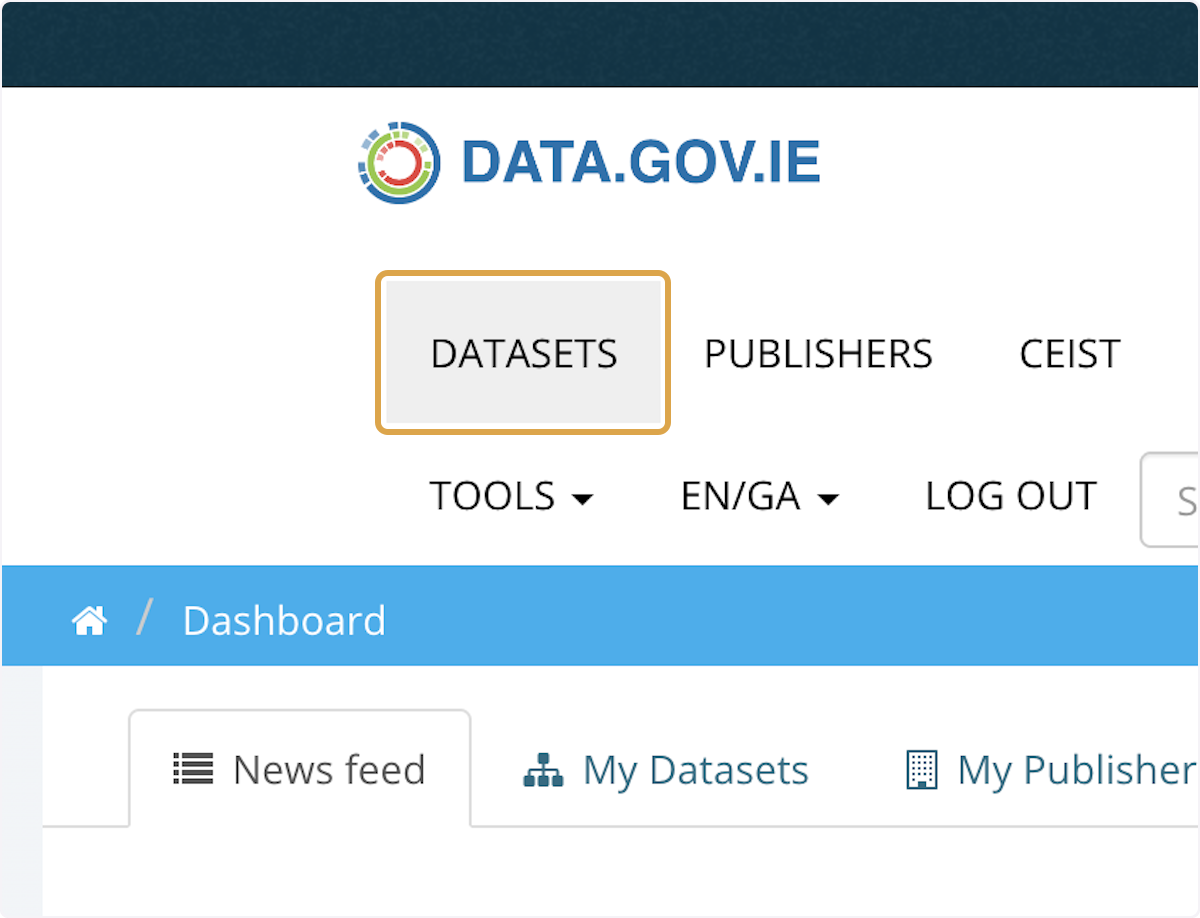
4. Click on the dataset you want to create a dashboard for
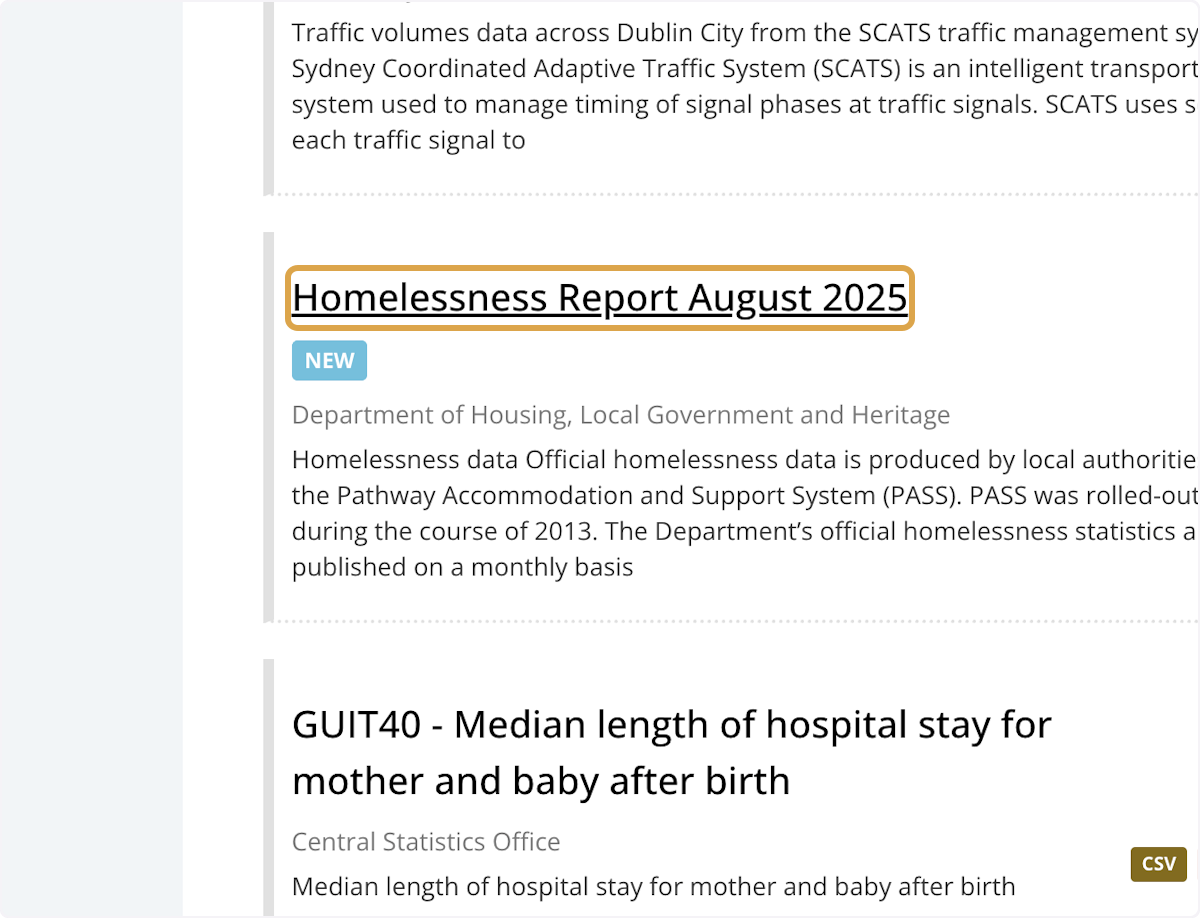
5. Click on Preview

6. Click on Manage
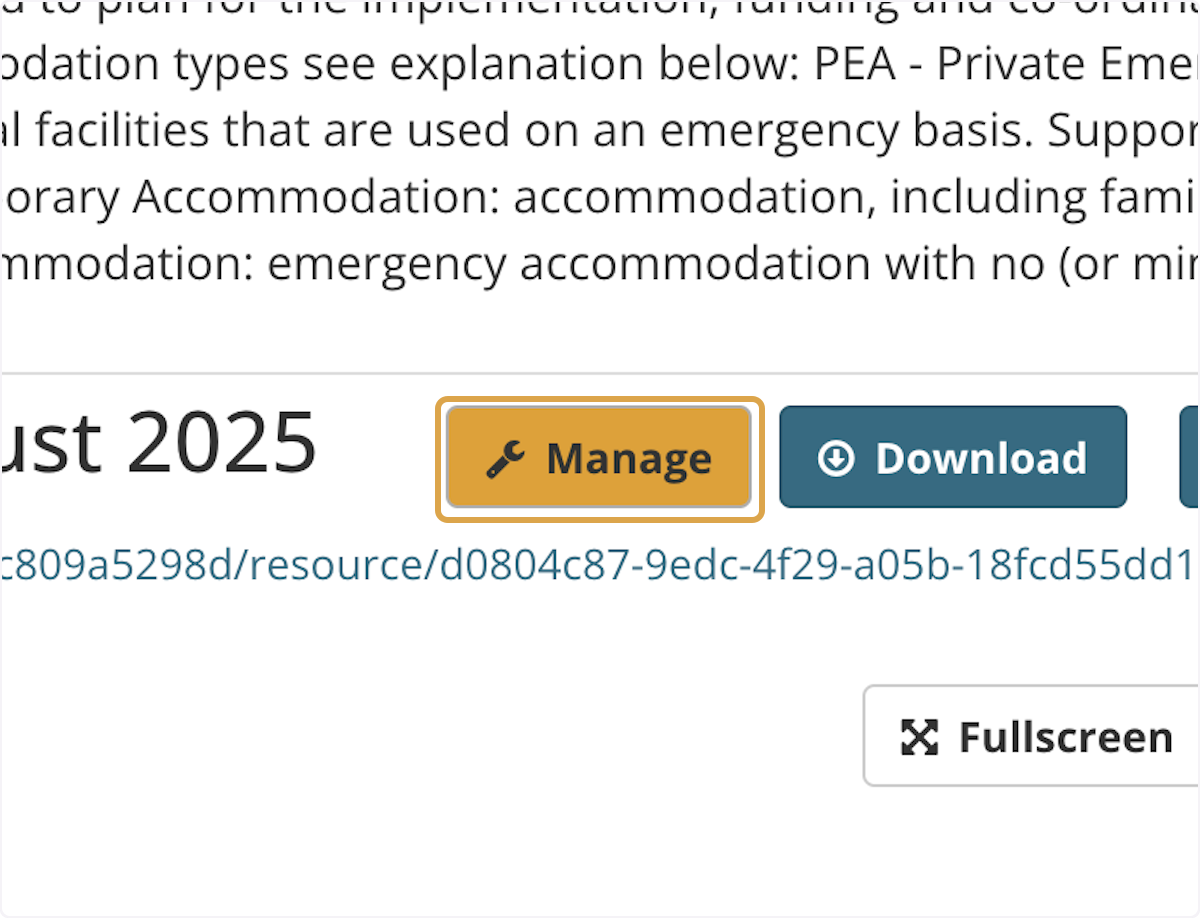
7. Click on DataStore

8. Click on Upload to DataStore
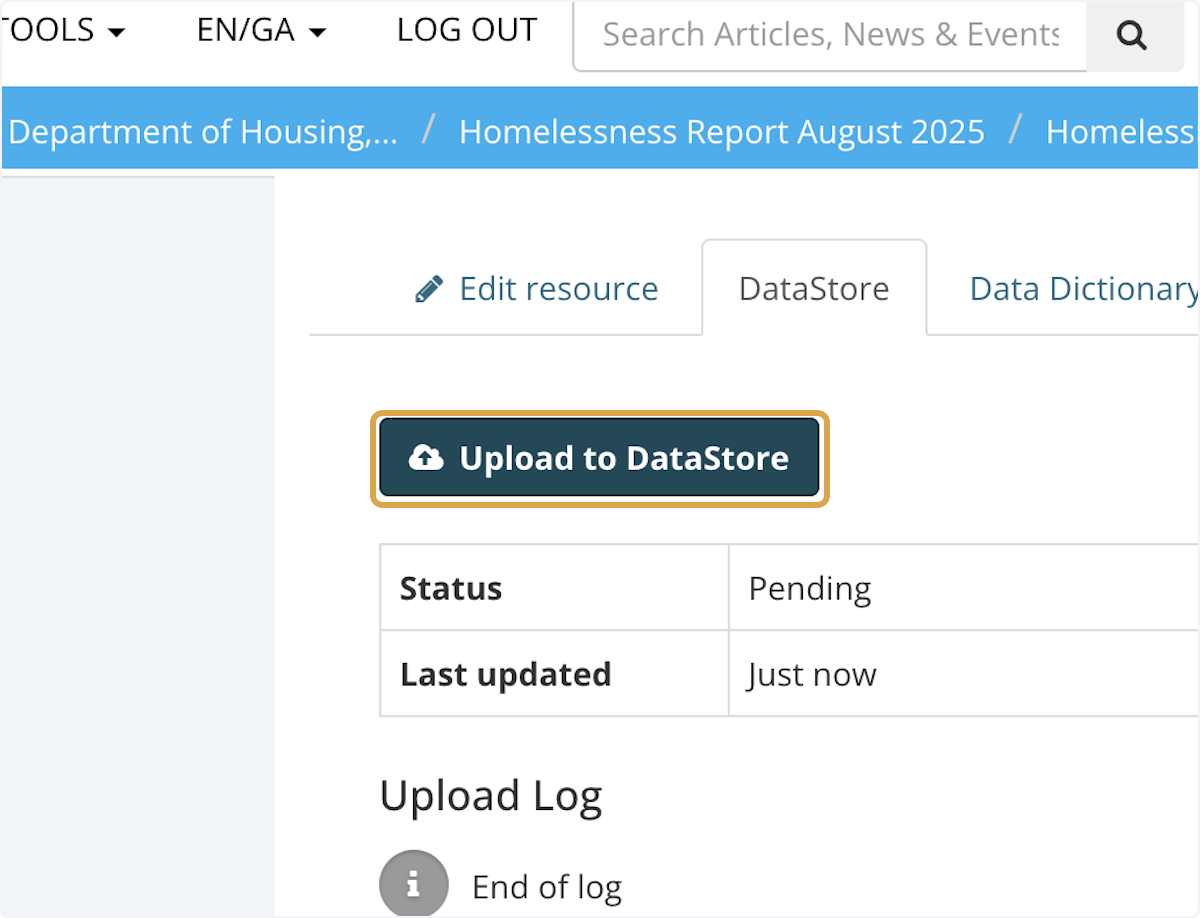
9. Check for status update to complete

10. Go to the dataset page
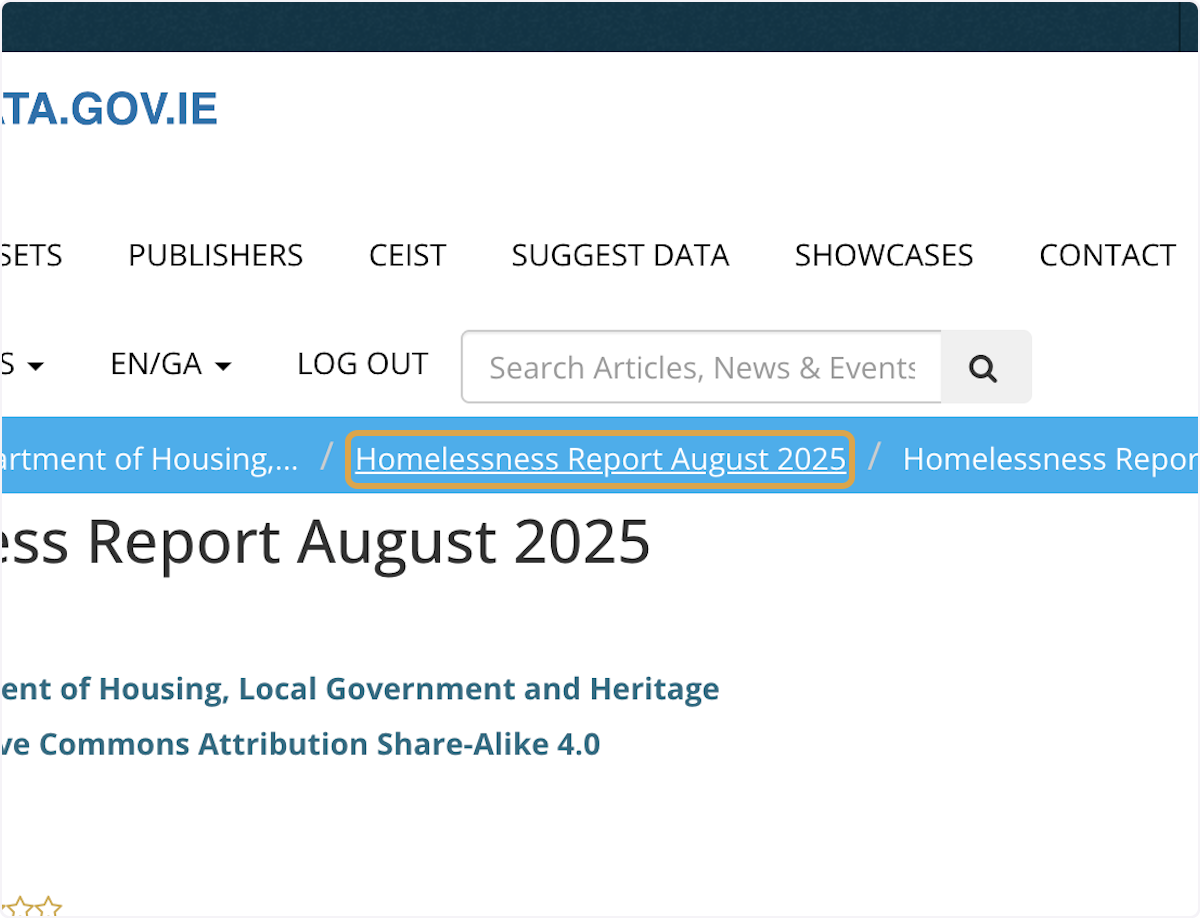
11. Click on create a dashboard on superset

12. Click on Dashboard
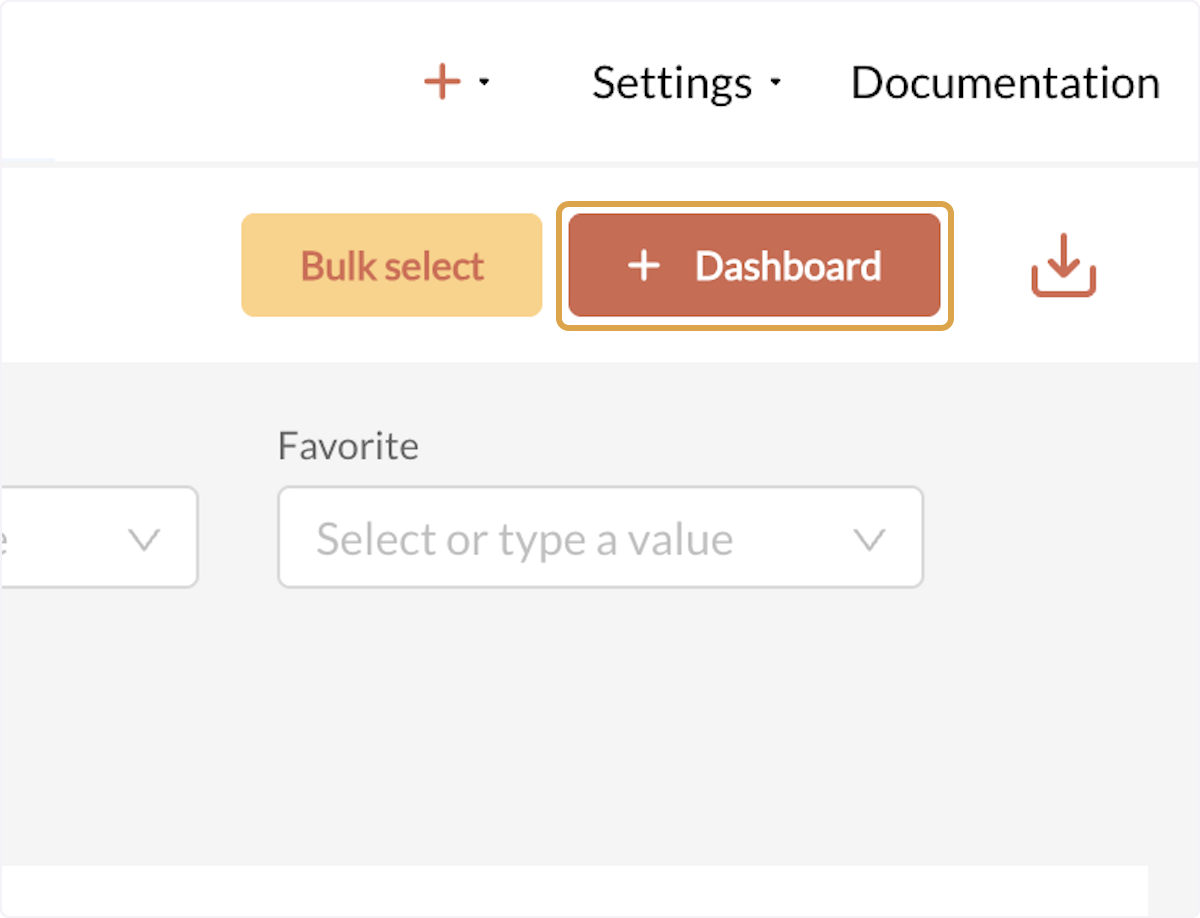
13. Name your dashboard

14. Click on Save

15. Click on Edit the dashboard

16. Click on Create a new chart

17. Search and choose the dataset
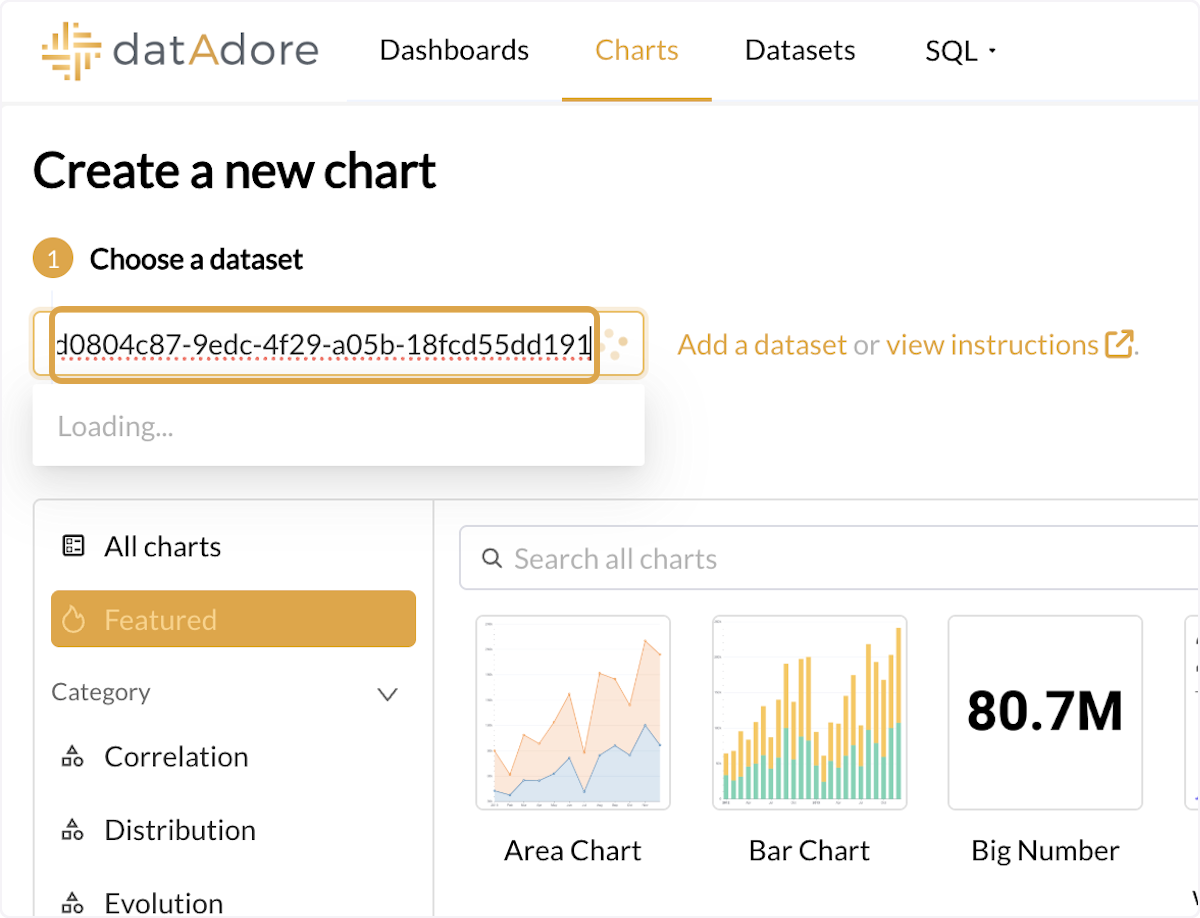
18. Click on Dataset

19. Different chart options will be available. Choose a chart type.

20. Click on Create new chart
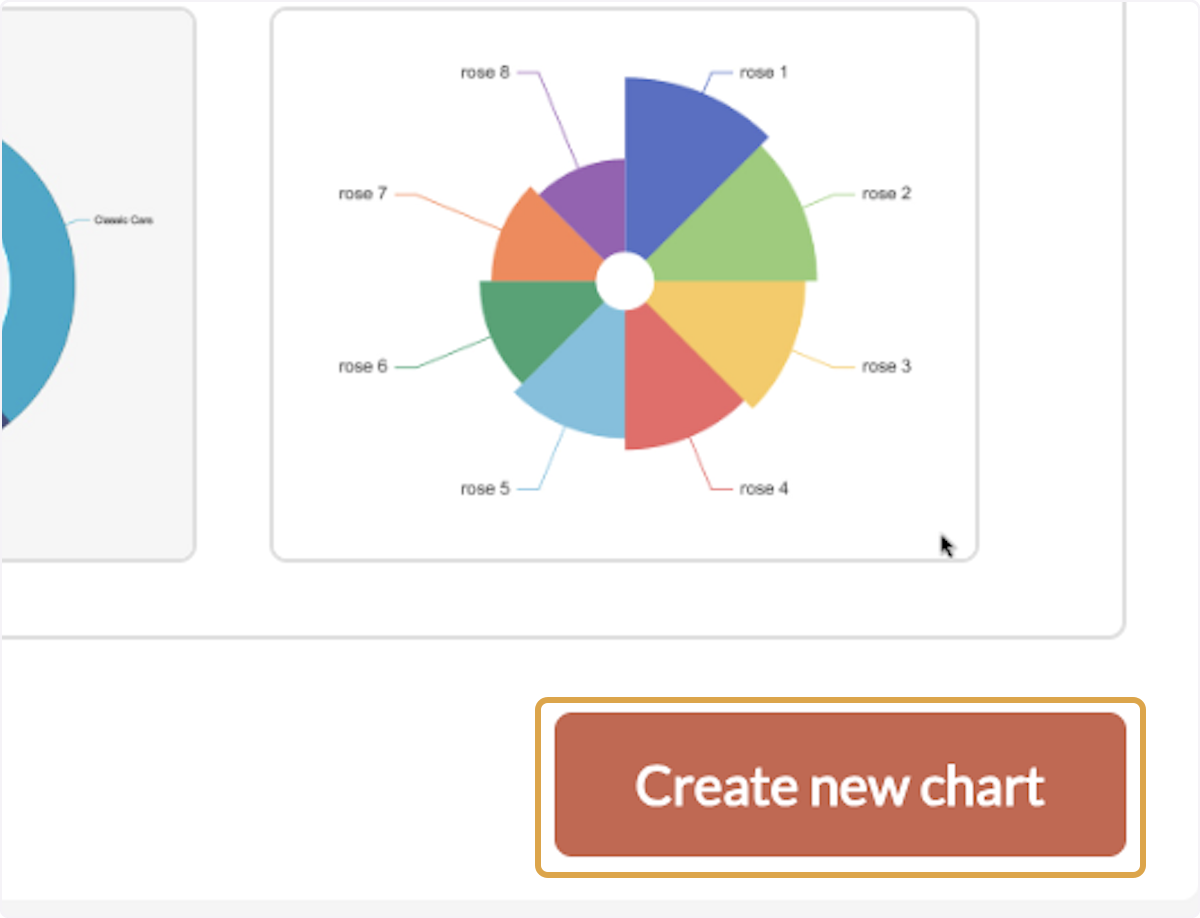
21. Build your own chart by creating a query

22. Drag and drop the columns to dimension

23. Drag highlighted text
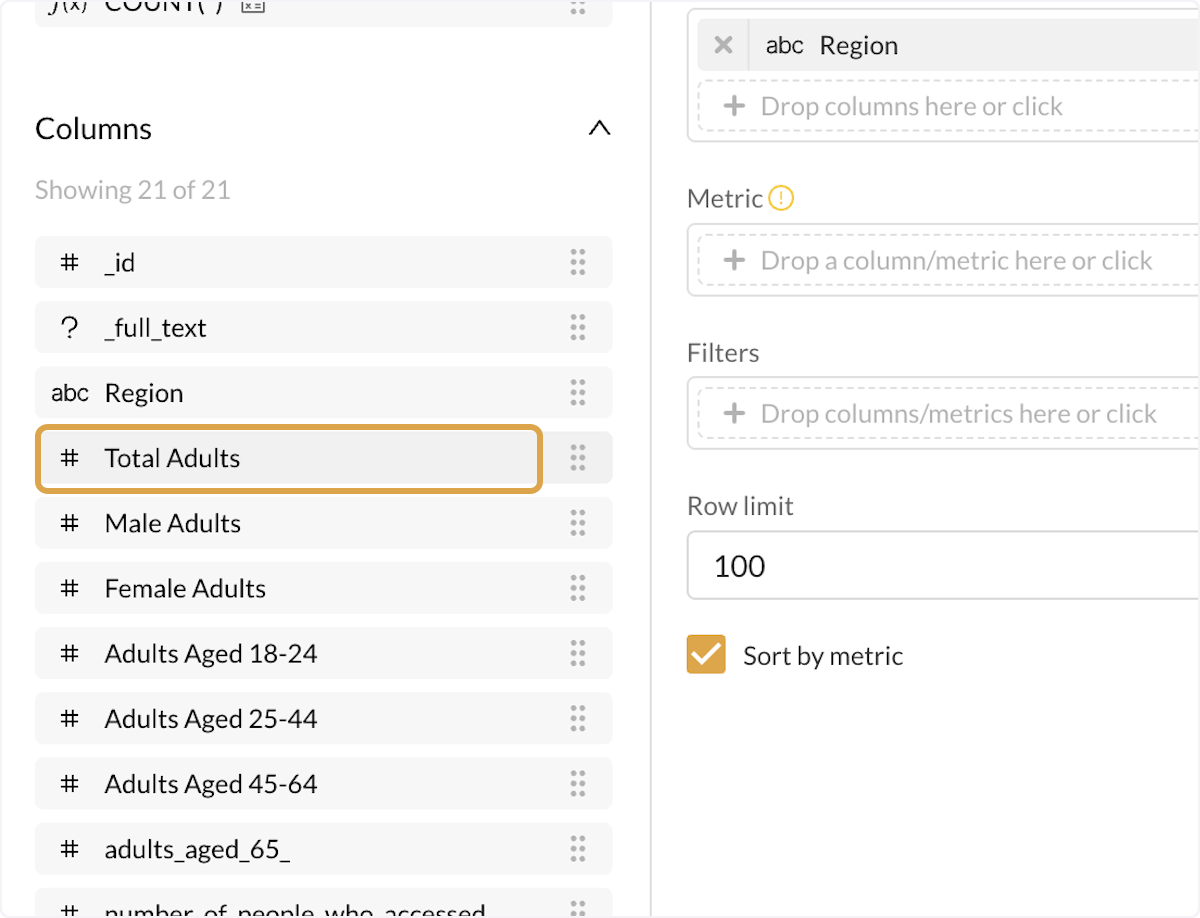
24. Click on Save
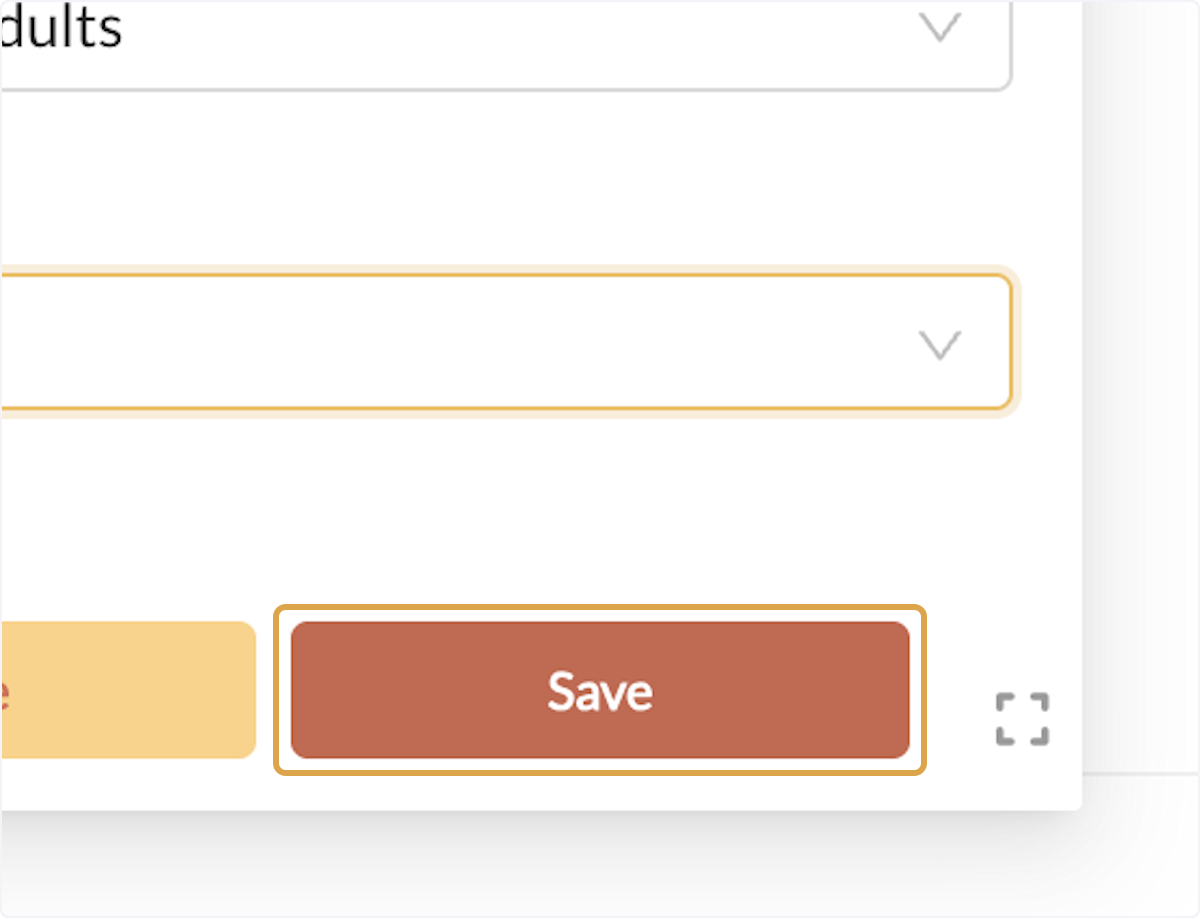
25. Chart will be created

26. Click on save and go to dashboard

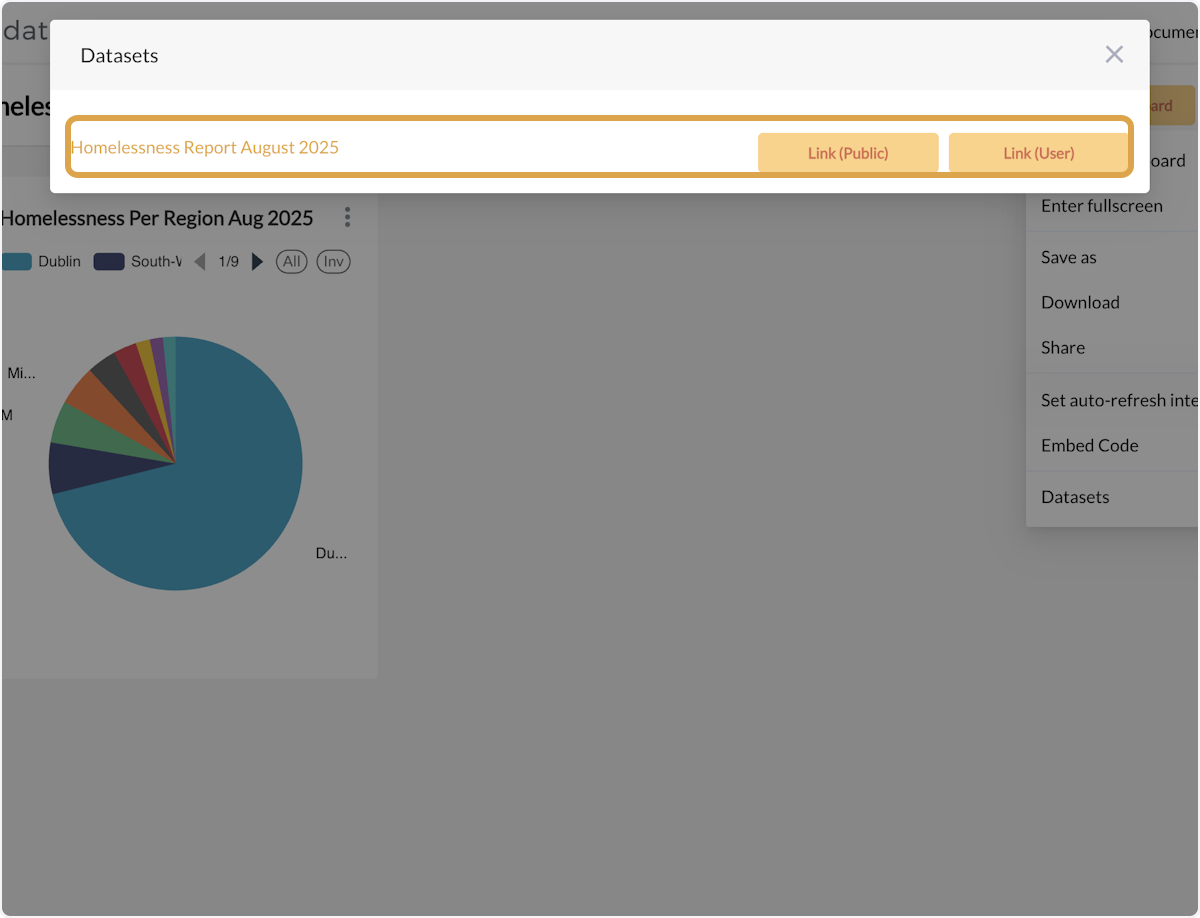
27. Click on Menu actions trigger

28. Click on Datasets

29. To link the chart to the dashboard click on Link (public) or (private)
Link (Public) - The dashboard will be made available to public as well as private users
Link (Private) - The dashboard will be made available to private users only
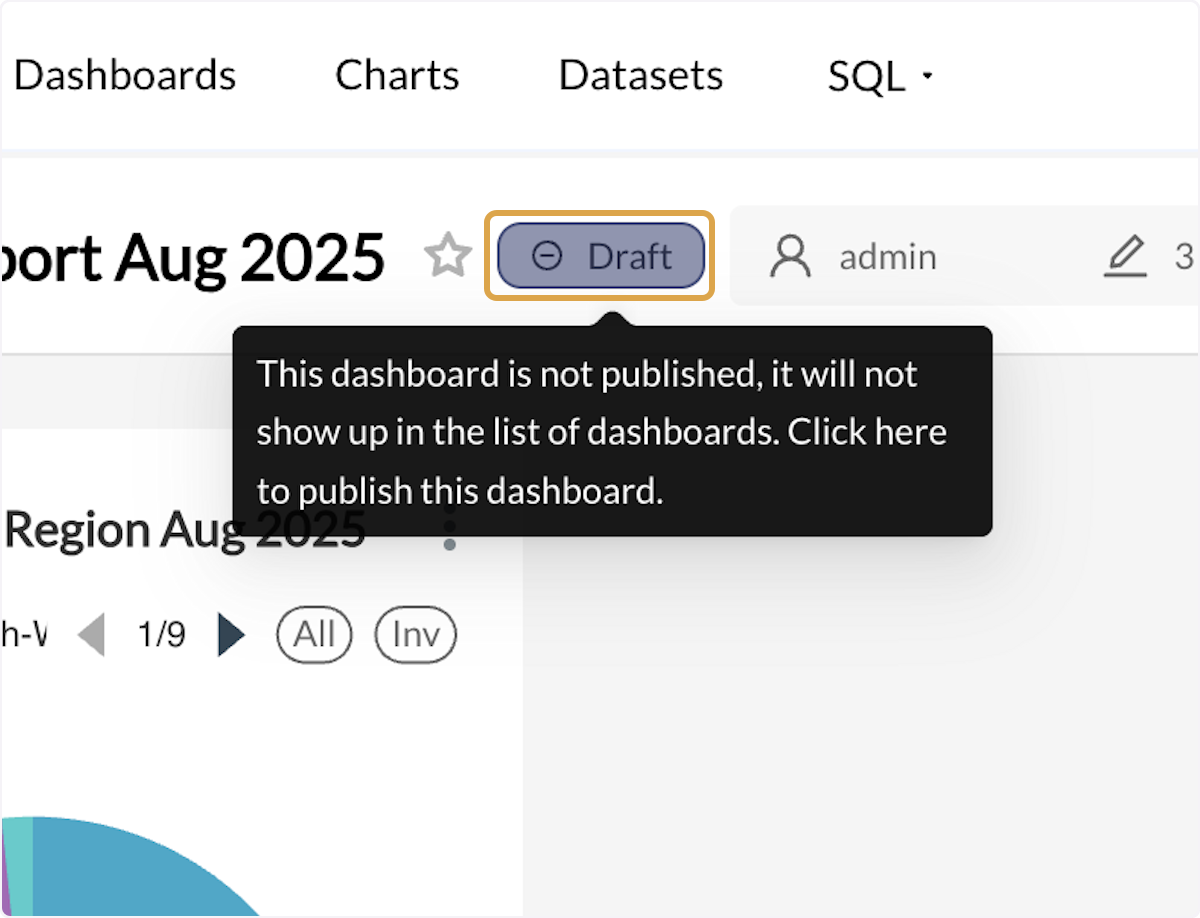
30. Click on Draft to change the status
Only published dashboards are available to view on the platform.
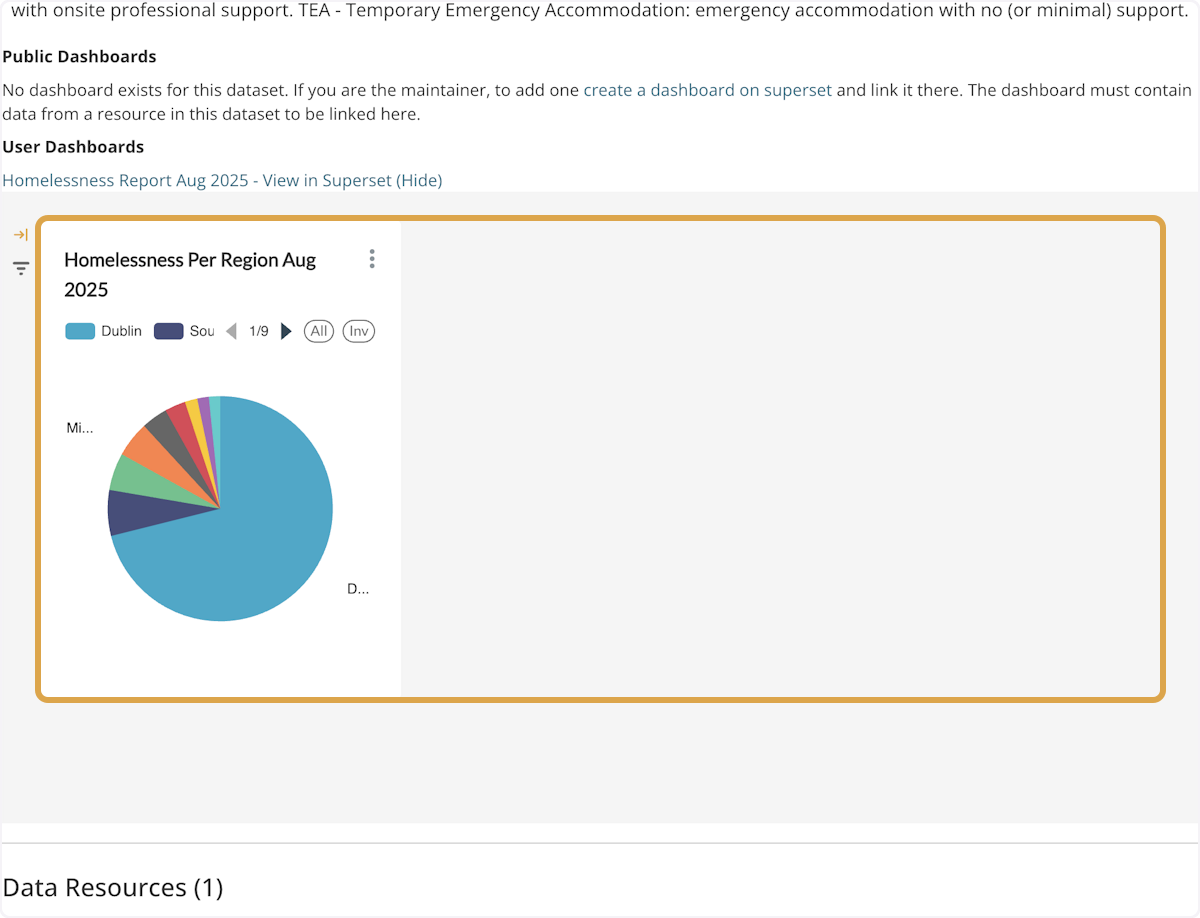
31. Go To the dataset

32. You can view the published dashboard

 Derilinx